> For the complete documentation index, see [llms.txt](https://docs.getblock.io/llms.txt). Markdown versions of documentation pages are available by appending `.md` to page URLs; this page is available as [Markdown](https://docs.getblock.io/getting-started/connect-brave-wallet-to-getblock.md).
# Connect Brave Wallet to GetBlock
Explore how to add custom GetBlock RPC endpoints to Brave Wallet for greater security, transaction speed, and reliability
Brave Wallet supports many networks and offers extensive customization options. However, each of its chains uses a **public RPC API endpoint**, which is very bad for privacy and efficiency.
GetBlock’s **private RPC nodes** can solve this problem. After downloading the Brave browser and setting up the wallet, visit and get one of the 100+ available chain endpoints.
{% hint style="success" %}
Using custom GetBlock nodes improves the Web3 experience in many ways:
* Secure connections without privacy breaches
* Lower latency and higher transaction speed
* No overloads even during high chain activities
{% endhint %}
Every wallet’s network can be modified this way, and this step-by-step guide shows how to do that.
***
### Before you start
You need to set up the Brave wallet and prepare the GetBlock API endpoints.
#### Download Brave and set up the wallet
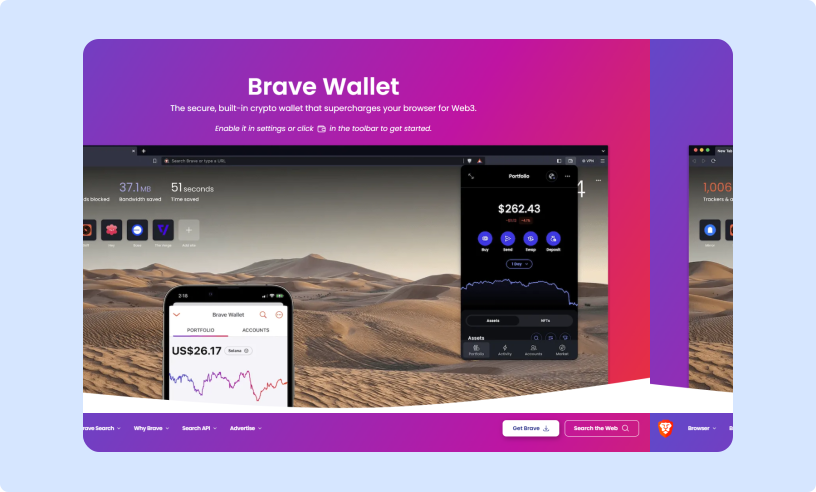
Brave Wallet is inseparable from the Brave browser. So, download and install the browser from the [official website](https://brave.com/wallet/). It’s available for desktop, Android, and iOS.
After opening the browser, look at the wallet icon in the upper right corner. Click on it to open the Brave Wallet. Import the account using a seed phrase or create a new one.
Now, it’s time to prepare the working part: the GetBlock node.
#### Get a custom RPC API endpoint
1. Proceed to the **GetBlock dashboard** and create an account or log in.
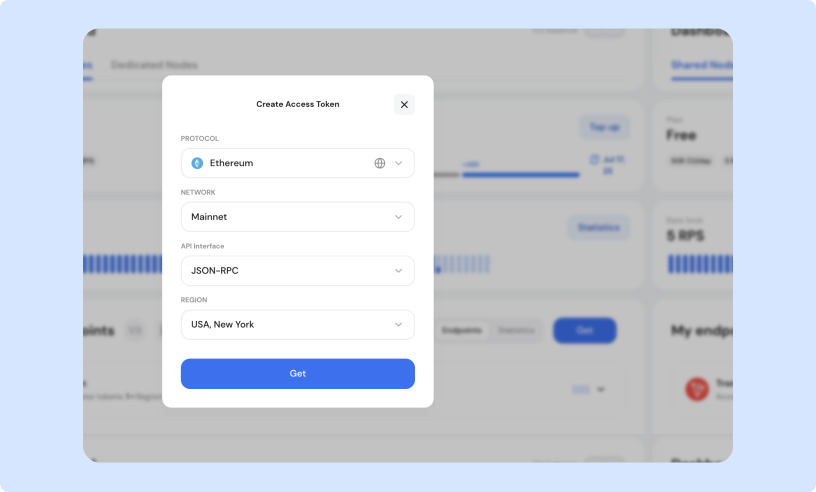
2. Click on the **Get** button to add a new RPC endpoint, and select the Ethereum mainnet.
3. Pick the endpoint **location**. Currently, Frankfurt, Singapore, and New York endpoints are available for a free node. Selecting the physically closest one is usually the best option.
4. Click Get, and the endpoint is ready.
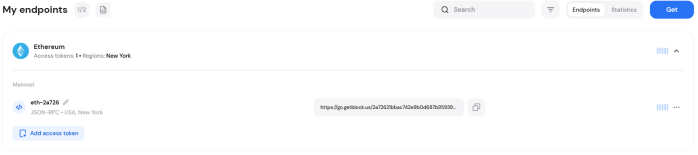
It’s now available via the access token URL and can be used to perform transactions, deploy smart contracts, and much more.
{% hint style="info" %}
Without a subscription, you may have only **2 endpoints** simultaneously. If you need more, consider deleting those you don’t need at the given moment.
{% endhint %}
Free node endpoints offer a generous 50,000 free Compute Units per day with a 20 RPS limit. It’s more than enough for single-person activities.
***
### Modify an existing EVM network
Brave Wallet supports a wide range of EVM and non-EVM networks. Let’s modify an Ethereum account.
{% stepper %}
{% step %}
**Go to Brave Wallet settings**
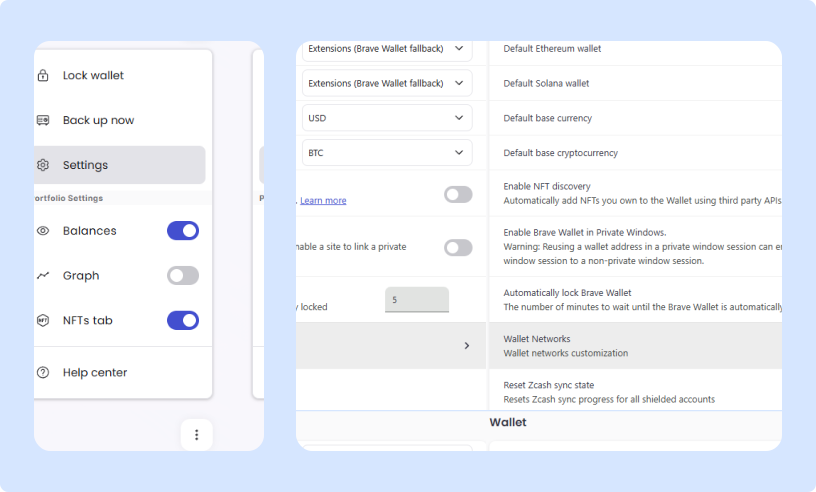
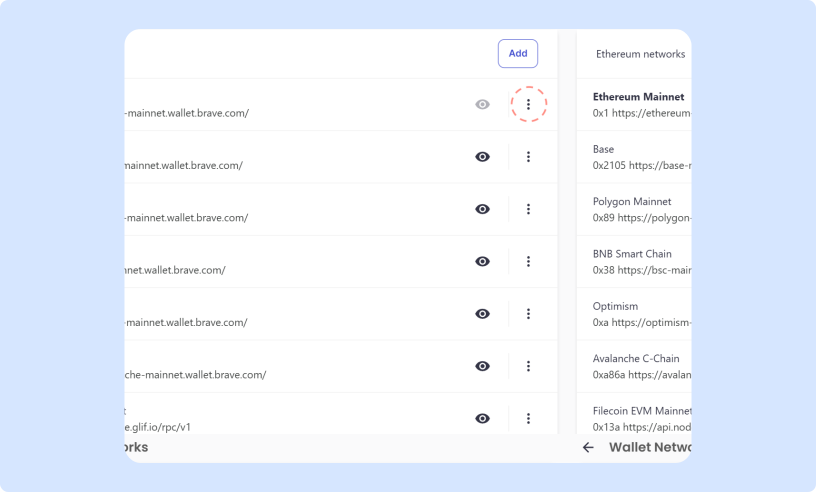
In the upper right corner of the wallet interface, click on the three-dot options (.svg?alt=media)) button and select **Settings**. Here, a list of supported networks can be found.
{% endstep %}
{% step %}
**Locate the network in the list**
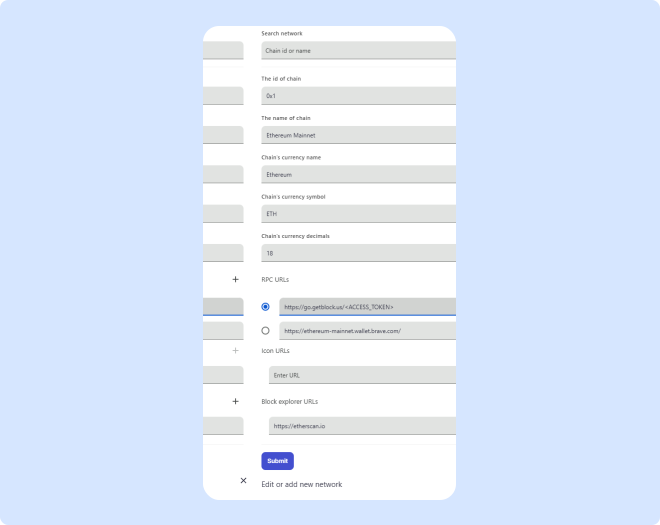
If the network of interest is already present, such as with Ethereum, click on the three-dot options (.svg?alt=media)) button right of Ethereum and then select **Edit** to open the account settings.
Look at the **RPC URLs** settings fro Ethereum: usually, a default Brave Wallet endpoint is present here. As every wallet user connects to it by default, it’s overloaded and insecure. That’s why a custom RPC URL is essential for Web3 activities.
{% endstep %}
{% step %}
**Add a custom API URL to the network**
Go to the GetBlock dashboard and copy the newly obtained Ethereum RPC access token. Add it under **RPC URLs** as shown below.
{% endstep %}
{% endstepper %}
Go to the wallet, and try to perform some actions with the Ethereum account:
* Check the balance
* Connect to dApps
* Execute smart contracts
* Make a transaction
In the GetBlock dashboard, track the remaining [compute unit](/getting-started/plans-and-limits/cu-and-rate-limits.md) balance.
***
### Add a new EVM network
If a network of interest isn’t included in the network list, it can be added manually. Let’s add the Polygon zkEVM network, a zero-knowledge L2.
{% hint style="success" %}
Brave Wallet is very convenient for managing blockchain networks, with hundreds of EVM protocols available. GetBlock almost certainly has a node endpoint for active and popular ones.
If you genuinely believe that a network is unfairly missing, you may [contact us](https://getblock.io/contact/) and suggest it.
{% endhint %}
{% stepper %}
{% step %}
**Search the network ID in Brave settings**
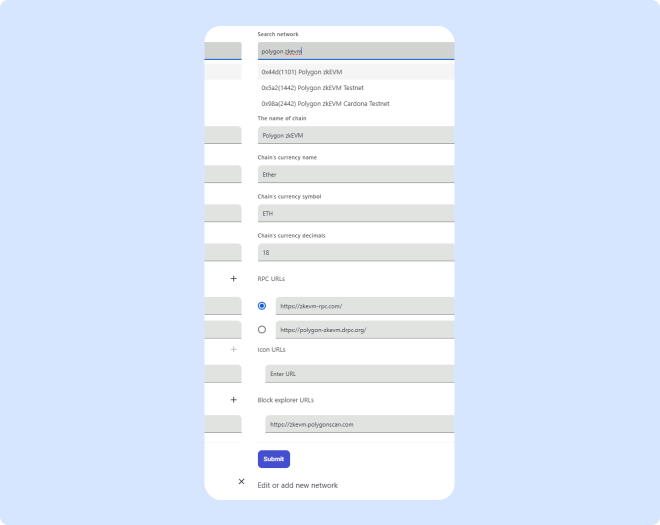
Return to the Wallet Networks menu. Instead of selecting existing networks, click on the Add button. Start typing “polygon zkevm” to locate the network quickly.
After clicking on it, Brave fills all required fields automatically.
{% endstep %}
{% step %}
**Get a network’s RPC URL at GetBlock**
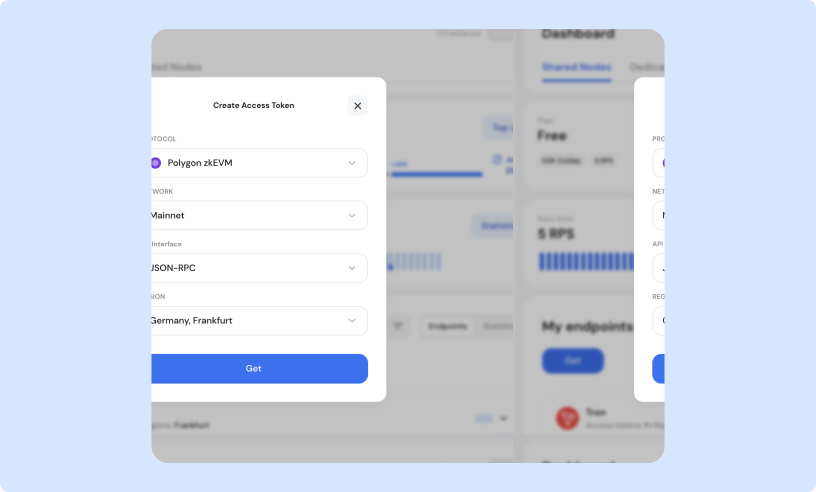
Return to the GetBlock dashboard, click Get again, and select Polygon zkEVM mainnet this time. Currently, only the Frankfurt region is available for zkEVM nodes.
Voila—the free and highly secure Polygon zkEVM node endpoint is ready.
{% endstep %}
{% step %}
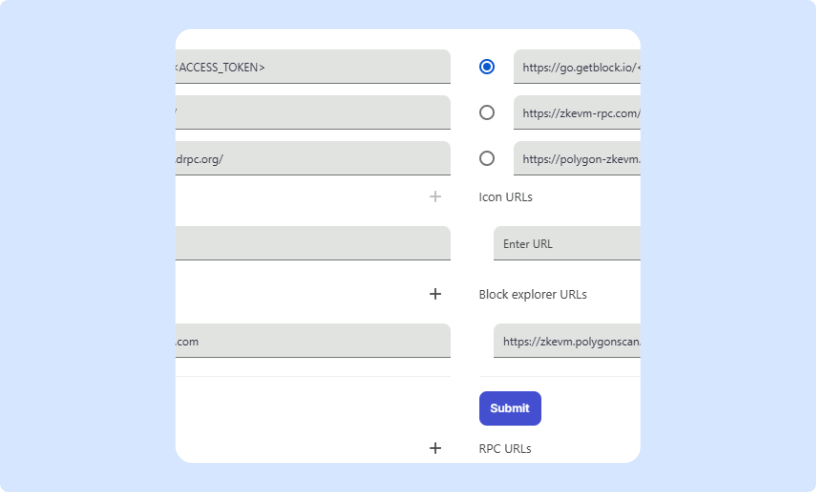
**Add a custom API URL to the new network**
Copy the access token and go to the Brave settings. Add the new RPC URLs field and paste the access token.
{% endstep %}
{% endstepper %}
It’s recommended to assign a custom account name, such as “Polygon zkEVM GetBlock,” to distinguish the dedicated account.
Then, return to the wallet and locate a new Polygon zkEVM account with the ETH native token and a custom name.
As with GetBlock’s Ethereum node, track the compute units usage at the GetBlock dashboard.